Your laptop goes everywhere with you—work desk, bed, coffee shop, maybe even the kitchen. Over time, dust, fingerprints, crumbs, and even invisible grime start building up both outside and inside the device. If ignored, this can affect performance, cause overheating, and even shorten the laptop’s lifespan.
Cleaning a laptop isn’t complicated, but it does require the right approach. In this guide, you’ll learn how to safely clean both the external parts and internal components of your laptop without causing damage.
Why Cleaning Your Laptop Is Important
A clean laptop isn’t just about looks—it directly impacts performance and hygiene.
- Prevents overheating caused by dust buildup
- Improves keyboard and trackpad responsiveness
- Reduces germs and bacteria
- Extends overall device life
- Keeps your workspace neat and professional
External Cleaning: Step-by-Step Guide
1. Turn Off and Unplug Your Laptop
Before you start, shut down your laptop completely and disconnect it from any power source. If possible, remove the battery (for older models).
2. Clean the Screen Carefully
Laptop screens are delicate, so avoid harsh cleaning methods.
How to do it:
- Use a microfiber cloth
- Lightly dampen it with water or screen-safe cleaner
- Wipe gently in circular motions
Avoid:
- Paper towels (they can scratch)
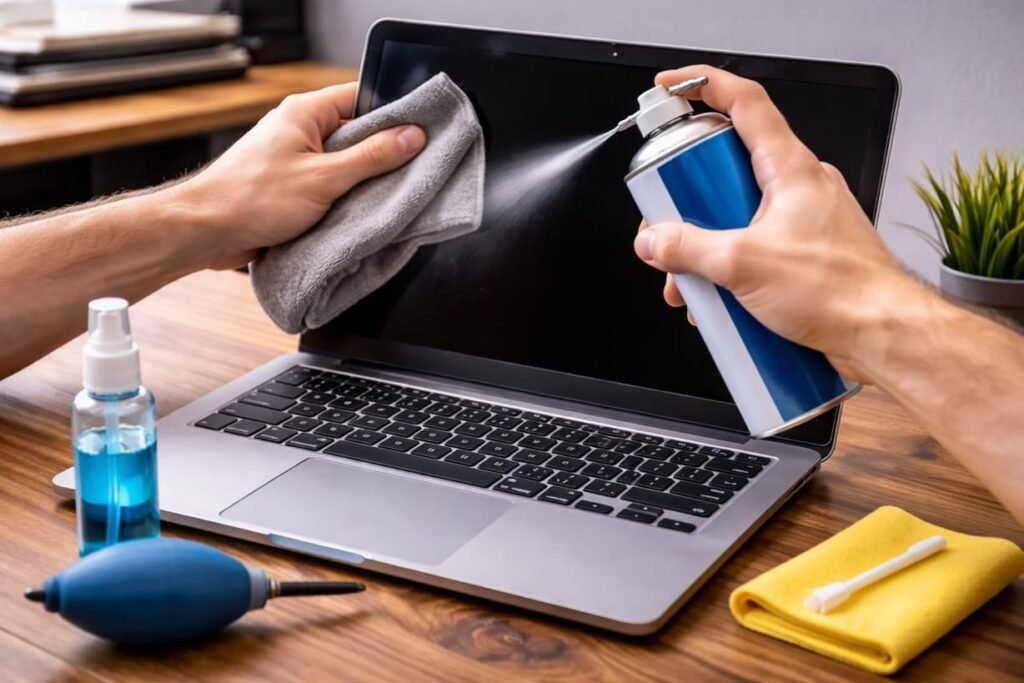
- Spraying liquid directly on the screen
3. Clean the Keyboard
Keyboards collect dust, crumbs, and oils from your fingers.
Steps:
- Turn the laptop upside down and gently tap it
- Use a soft brush or compressed air to remove debris
- Wipe keys with a slightly damp microfiber cloth
Tip: For deeper cleaning, use cotton swabs around keys.
4. Clean the Trackpad and Outer Body
The trackpad and palm rest area often get oily and sticky.
How to clean:
- Use a microfiber cloth with a small amount of cleaning solution
- Wipe all surfaces gently
- Dry with a clean cloth
5. Clean Ports and Vents
Dust buildup in ports and vents can affect airflow and connectivity.
Steps:
- Use compressed air to blow out dust
- Avoid inserting sharp objects
- Keep a safe distance while spraying
Internal Cleaning: What You Need to Know
Internal cleaning is where things require a bit more care. If you’re not confident, it’s better to get professional help—but basic cleaning can still be done safely at home.
1. Open the Back Panel (If Accessible)
Some laptops allow easy access to internal components.
Before opening:
- Make sure the laptop is powered off
- Use the correct screwdriver
- Work on a clean, static-free surface
2. Remove Dust from Fan and Components
The cooling fan is the most important part to clean internally.
How to do it:
- Use compressed air to blow dust away
- Hold the fan in place while cleaning to avoid spinning damage
- Clean vents and surrounding areas
3. Clean Internal Surfaces Gently
If there’s visible dust inside:
- Use a soft brush or air blower
- Do not touch sensitive components unnecessarily
- Avoid liquids completely inside the laptop
4. Reassemble Carefully
Once cleaning is done:
- Close the panel properly
- Tighten screws without over-tightening
- Power on and check if everything runs smoothly
Tools You’ll Need
- Microfiber cloth
- Compressed air can or air blower
- Soft brush
- Cotton swabs
- Mild cleaning solution (optional)
- Screwdriver (for internal cleaning)
How Often Should You Clean Your Laptop?
- External cleaning: Once a week
- Keyboard deep cleaning: Every 2–3 weeks
- Internal cleaning: Every 3–6 months (depending on usage and environment)
Common Mistakes to Avoid
- Using too much liquid
- Cleaning while the laptop is on
- Using rough materials like tissues or towels
- Opening the laptop without proper tools
- Ignoring vents and cooling areas
Final Thoughts
Cleaning your laptop doesn’t require expert-level skills, but it does demand patience and care. Regular external cleaning keeps your device looking fresh and hygienic, while occasional internal cleaning ensures it runs smoothly without overheating.
If you make it a habit, you’ll notice better performance, fewer issues, and a laptop that simply feels better to use every day.
You can also read How to Clean Desktop Computer Safely.
FAQs
Q1. Is it safe to clean a laptop at home?
Yes, it’s safe if you follow proper steps like turning it off, using the right tools, and avoiding excess moisture.
Q2. How do I clean my laptop screen without damaging it?
Use a microfiber cloth slightly dampened with water or a screen-safe cleaner. Avoid spraying liquid directly on the screen.
Q3. Can I clean my laptop internally by myself?
Basic cleaning like removing dust with compressed air is safe. For deep cleaning, professional help is recommended if you’re unsure.
Q4. What is the best way to clean a laptop keyboard?
Use compressed air to remove debris and wipe keys gently with a slightly damp microfiber cloth.
Q5. How often should I clean my laptop?
Clean the exterior weekly and the internal parts every 3–6 months, depending on usage and dust exposure.
Image Credits: Created by ChatGPT using DALL·E (OpenAI).
Explore our News Section for daily updates and the latest tech news. Join our WhatsApp Channel for instant updates.