A desktop computer sits in one place, quietly collecting dust day after day. Unlike laptops, desktops often go longer without cleaning, especially inside the cabinet where dust buildup isn’t visible. Over time, this can slow down performance, block airflow, and even lead to overheating or hardware failure.
The good part? Cleaning a desktop computer is straightforward if you follow the right steps. Whether you want to freshen up the outer surfaces or safely clean internal components, this guide covers everything in a practical and easy-to-follow way.
Why Cleaning Your Desktop Computer Matters
Dust is one of the biggest enemies of any desktop system. It may seem harmless, but it can cause serious issues over time.
- Blocks airflow and causes overheating
- Reduces performance of CPU and GPU
- Increases fan noise
- Shortens the lifespan of components
- Creates an unhygienic workspace
Regular cleaning keeps your system running efficiently and quietly.
External Cleaning: Keep It Clean on the Outside
1. Power Off and Disconnect Everything
Start by turning off your computer completely. Unplug the power cable and disconnect all accessories like keyboard, mouse, and monitor cables.
2. Clean the Monitor
Dust and fingerprints can make your screen look dull.
How to clean:
- Use a microfiber cloth
- Slightly dampen it with water or screen-safe cleaner
- Wipe gently without applying pressure
Avoid: Spraying liquid directly onto the screen.
3. Clean the Keyboard and Mouse
These are the most used parts and collect the most dirt.
Steps:
- Shake the keyboard gently to remove loose debris
- Use compressed air between keys
- Wipe with a damp cloth
For the mouse, wipe the surface and clean the sensor area carefully.
4. Wipe the CPU Cabinet (Outer Body)
The outer case also collects dust and fingerprints.
- Use a dry or slightly damp cloth
- Clean front panels, buttons, and top surface
- Pay attention to air vents and grills
5. Clean Ports and External Vents
Ports can collect dust that affects connectivity.
- Use compressed air to blow out dust
- Avoid inserting metal or sharp objects
Internal Cleaning: Deep Cleaning for Better Performance
Internal cleaning is where you make the biggest difference in performance and cooling.
1. Open the Cabinet Carefully
Most desktop cabinets are easy to open.
Before opening:
- Make sure everything is unplugged
- Press the power button once to discharge leftover electricity
- Use a proper screwdriver
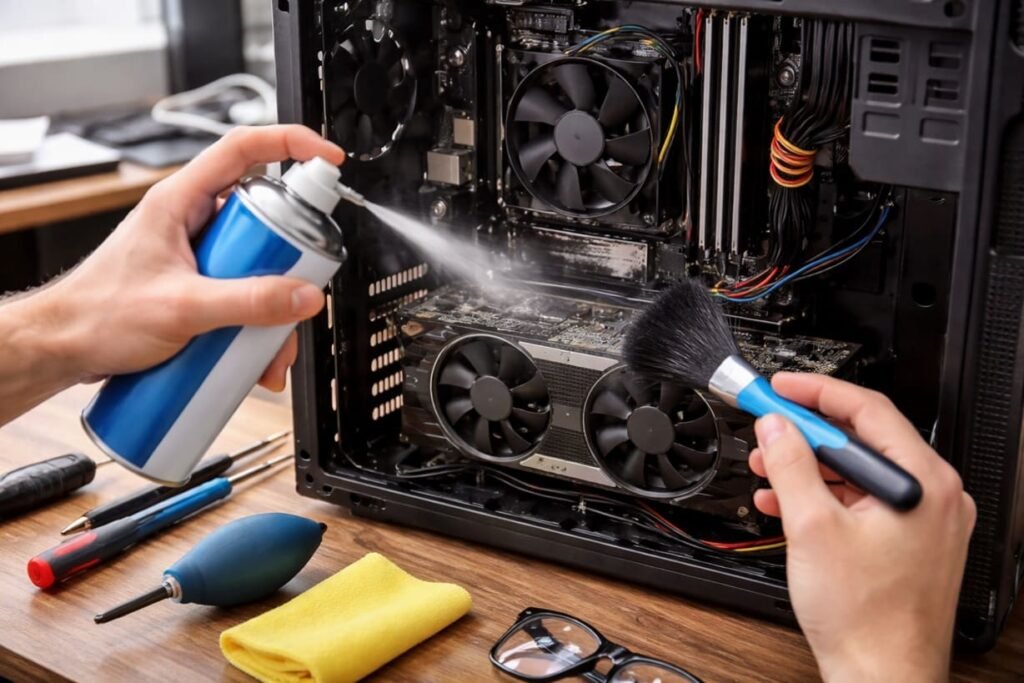
2. Remove Dust from Fans and Components
Fans are the main dust collectors inside your PC.
Steps:
- Use compressed air to blow dust from fans, CPU cooler, and GPU
- Hold fans steady while cleaning to prevent damage
- Clean power supply vents from the outside
3. Clean the Motherboard and Interior
Dust often settles on flat surfaces inside.
- Use a soft brush or air blower
- Clean gently around RAM, cables, and slots
- Do not use water or liquid cleaners inside
4. Check and Clean Air Filters
Some cabinets come with removable dust filters.
- Take them out
- Wash with water and let them dry completely
- Reinstall once fully dry
5. Reassemble the Cabinet
After cleaning:
- Close the side panel properly
- Tighten screws securely
- Reconnect cables and power on the system
Tools You’ll Need
- Microfiber cloth
- Compressed air can or air blower
- Soft brush
- Screwdriver
- Cotton swabs (optional)
How Often Should You Clean Your Desktop?
- External cleaning: Once a week
- Basic internal cleaning: Every 2–3 months
- Deep internal cleaning: Every 6 months
If your environment is dusty, you may need to clean more frequently.
Common Mistakes to Avoid
- Cleaning while the computer is plugged in
- Using liquid cleaners inside the cabinet
- Letting fans spin freely while using air
- Ignoring power supply vents
- Rushing the cleaning process
Final Thoughts
Cleaning your desktop computer is one of the simplest ways to improve its performance and extend its life. A few minutes spent removing dust from the outside and inside can prevent overheating, reduce noise, and keep everything running smoothly.
Make it a regular habit, and your desktop will not only perform better but also stay reliable for years to come.
You can also read How to Clean Your Laptop Safely.
FAQs
Q1. Is it safe to clean a desktop computer at home?
Yes, it is safe if you power it off, unplug it, and use proper tools like compressed air and a microfiber cloth.
Q2. How often should I clean my desktop computer?
External cleaning should be done weekly, while internal cleaning is recommended every 3 to 6 months.
Q3. Can I use water to clean my desktop internally?
No, never use water or liquid cleaners inside the cabinet. Only dry tools like air blowers or brushes should be used.
Q4. What is the safest way to clean computer fans?
Use compressed air while holding the fan blades still to prevent damage from spinning.
Q5. Why does my desktop get dusty so quickly?
Dust enters through air vents and fans. If your environment is dusty or the PC is placed on the floor, it will collect dust faster.
Image Credits: Created by ChatGPT using DALL·E (OpenAI).
Explore our News Section for daily updates and the latest tech news. Join our WhatsApp Channel for instant updates.