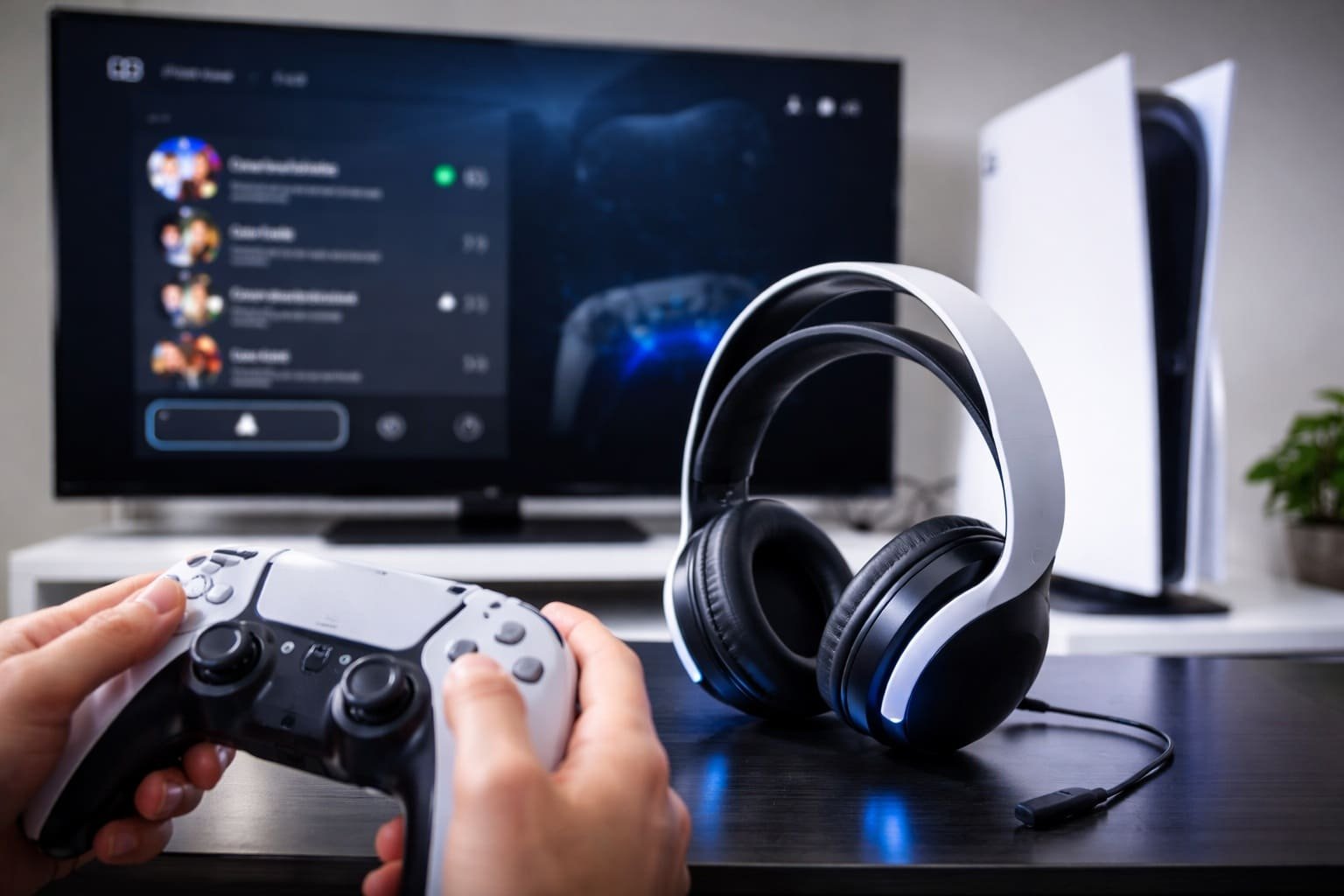
Voice chat has become an essential part of modern gaming, whether you’re teaming up with friends or coordinating strategies in competitive matches. If you own a PlayStation 5, setting up voice chat is simple—but doing it the right way ensures clear audio and a smooth experience.
In this detailed guide, you’ll learn everything from basic setup to advanced tips for using voice chat effectively on your PS5.
Understanding Voice Chat on PS5
The PS5 offers multiple ways to communicate with other players. You can use built-in party chat, in-game voice chat, or even join voice chats through the PlayStation App. The system is designed to be flexible, allowing you to switch between chats without interrupting your gameplay.
Voice chat works through:
- Party Chat (PlayStation Network-based)
- Game Chat (inside specific games)
- Voice Chat via PlayStation App (mobile integration)
Setting Up Voice Chat Using a Headset
To get started, you’ll need a compatible headset. The PS5 supports both wired and wireless headsets.
Connecting a Wired Headset
Plug your headset into the DualSense controller’s 3.5mm headphone jack. Once connected, the PS5 usually detects it automatically.
Go to Settings > Sound > Audio Output, and make sure your output device is set to “Controller Headset.”
Connecting a Wireless Headset
If you’re using a wireless headset:
- Insert the USB dongle into the console
- Turn on the headset
- Wait for automatic pairing
For Bluetooth headsets, note that PS5 has limited native support, so most require a USB adapter.
Adjusting Microphone Settings
Proper mic configuration is crucial for clear communication.
Navigate to: Settings > Sound > Microphone
Here you can:
- Select your input device
- Adjust microphone level
- Test your mic in real-time
The PS5 also features a built-in microphone in the DualSense controller, which is useful if you don’t have a headset—but a dedicated mic is always better for quality.
Creating and Joining a Party Chat
Party chat is the most reliable way to talk with friends.
How to Start a Party
Press the PlayStation button on your controller to open the Control Center. Then:
- Select “Game Base”
- Choose “Create Party”
- Invite your friends
Once your friends join, you can start talking instantly.
Joining an Existing Party
If you receive an invite:
- Open Control Center
- Go to Game Base
- Accept the party invitation
You’ll be connected to voice chat immediately.
Using In-Game Voice Chat
Many multiplayer games have built-in voice chat systems. These work independently of PS5 party chat.
Popular titles like Call of Duty: Warzone and Fortnite allow cross-platform communication.
To enable:
- Go to the game’s settings menu
- Turn on voice chat
- Adjust input/output devices if needed
Keep in mind, if you’re in a PS5 party, game chat audio may be muted unless you switch.
Switching Between Party Chat and Game Chat
The PS5 makes it easy to switch between chat types.
While in a party:
- Open Control Center
- Select the voice chat card
- Choose “Switch to Game Chat”
This is useful when you need to communicate with players outside your PlayStation Network friends list.
Using Voice Chat via PlayStation App
The PlayStation App allows you to join voice chats directly from your smartphone.
Steps:
- Download and install the app
- Log in with your PlayStation account
- Join a party from Game Base
- Use your phone as a microphone
This is a great alternative if your headset isn’t available.
Managing Voice Chat Audio Settings
For the best experience, fine-tune your audio settings.
Go to: Settings > Sound > Volume
Here you can:
- Adjust headset volume
- Balance game audio vs chat audio
- Enable 3D audio for immersive sound
Balancing audio ensures you can hear both your teammates and in-game cues clearly.
Troubleshooting Common Voice Chat Issues
Sometimes voice chat may not work as expected. Here are common fixes:
Microphone Not Working
- Check mute button on controller or headset
- Re-select input device in settings
- Increase mic level
No Sound from Others
- Verify output device settings
- Check party chat volume
- Ensure you’re not muted in the party
Connection Issues
- Restart your PS5
- Check internet connection
- Rejoin the party
Privacy and Safety Settings
The PS5 includes privacy controls to manage who can communicate with you.
Go to: Settings > Users and Accounts > Privacy
You can:
- Restrict voice chat with strangers
- Limit party invitations
- Control communication permissions
This is especially useful for younger players or those who prefer a more controlled experience.
Final Thoughts
Setting up voice chat on the PS5 is straightforward, but taking a few extra minutes to optimize your settings can make a huge difference. Whether you’re coordinating with teammates in Fortnite or chatting casually with friends, clear communication enhances every gaming session.
With the right setup—good headset, proper audio settings, and understanding of party vs game chat—you’ll enjoy a seamless and immersive multiplayer experience on your PlayStation 5.
Image Credits: Created by ChatGPT using DALL·E (OpenAI).