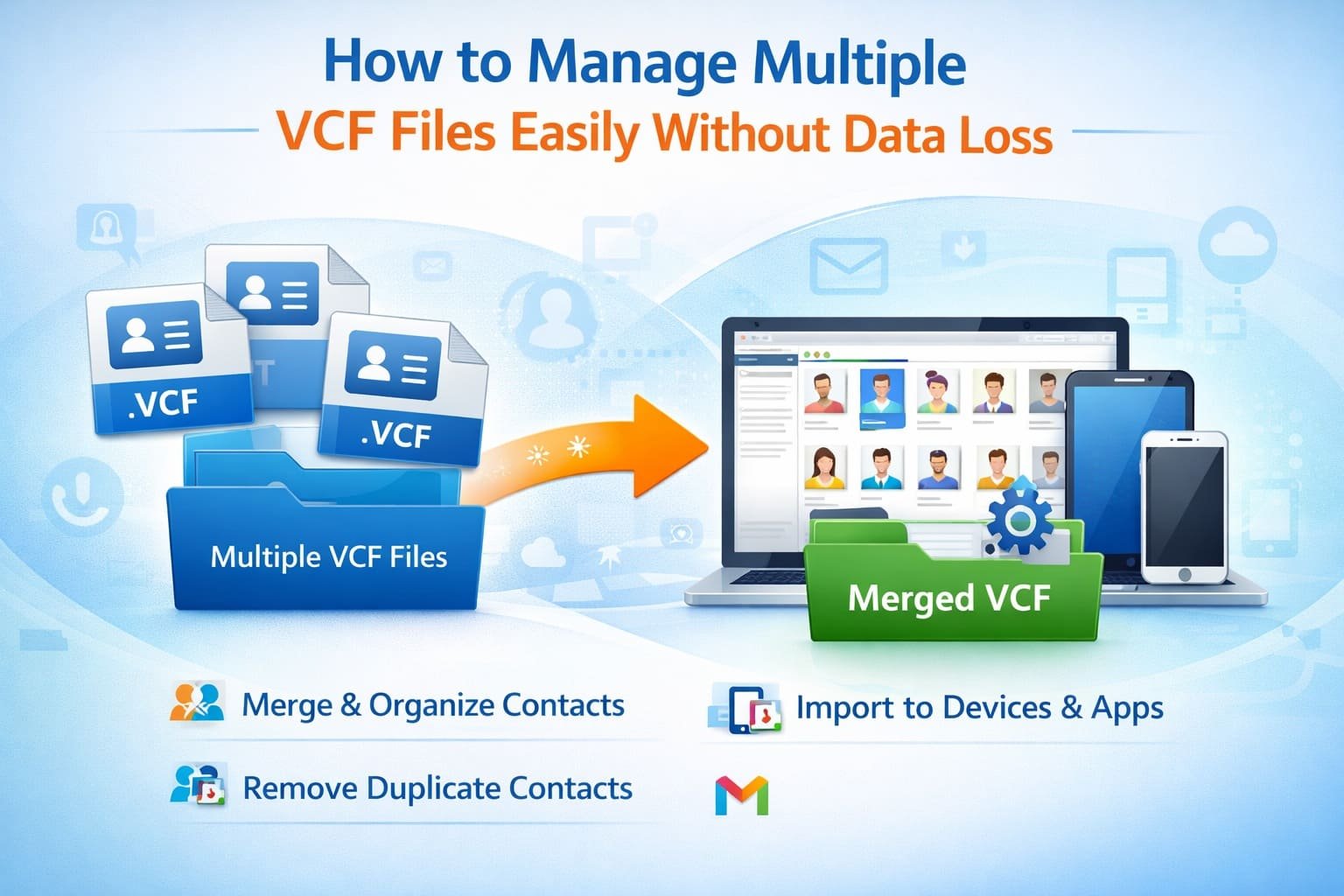
VCF (vCard) files are widely used to store and share contact information across devices and platforms. Whether you’re transferring contacts from a smartphone, email client, or backup file, handling a single VCF is simple. But when you’re dealing with multiple VCF files, things can quickly become messy and time-consuming.
This guide explains how to manage multiple VCF files efficiently, helping you organize, merge, edit, and use them without confusion or data loss.
What Are VCF Files and Why Management Matters
A VCF file stores contact details like name, phone number, email, address, and more. When you have multiple VCF files, each file may contain one or several contacts. Without proper management, this can lead to:
- Duplicate contacts
- Scattered data across files
- Difficulty importing contacts into devices
- Increased chances of errors
Managing these files properly ensures smooth access and better organization.
Common Scenarios Where You Deal with Multiple VCF Files
- Exporting contacts from different devices
- Receiving contact files from multiple users
- Backing up contacts regularly
- Migrating contacts between platforms
In all these cases, handling multiple files efficiently becomes essential.
Method 1: Merge Multiple VCF Files into One
Combining multiple VCF files into a single file makes importing and managing contacts much easier.
Manual Method (Basic Way)
- Open the folder containing all VCF files
- Select all files
- Right-click and open them with a text editor (like Notepad)
- Copy all content and paste into a single file
- Save the file with a .vcf extension
Limitations
- Risk of formatting errors
- Not suitable for large numbers of files
- Requires careful handling
Method 2: Import Multiple VCF Files into Email Platforms
Most email services support VCF import.
Steps (Example for Gmail)
- Open your Gmail account
- Go to Contacts
- Click on “Import”
- Upload the VCF file
Note: Gmail typically allows one VCF file at a time, so merging files first is recommended.
Method 3: Use Contact Management Software
For better control and accuracy, using a dedicated tool is highly recommended.
Key Benefits
- Bulk import of multiple VCF files
- Merge contacts without duplication
- Edit and organize contact fields
- Export to different formats if needed
How It Works
- Launch the software
- Add multiple VCF files or a folder
- Preview all contacts
- Merge or edit as needed
- Save or export the final file
Method 4: Manage VCF Files on Mobile Devices
On Android
- Open Contacts app
- Use “Import/Export” option
- Select VCF files from storage
On iPhone
- Send VCF files via email or AirDrop
- Open the file and save contacts
Managing multiple files directly on mobile can be slow, so it’s better to organize them on a computer first.
Best Practices for Managing Multiple VCF Files
- Always keep a backup before making changes
- Merge files to reduce clutter
- Remove duplicate contacts regularly
- Use clear file naming for easy identification
- Verify contact details after importing
Common Issues and Solutions
Duplicate Contacts
Use tools with duplicate detection to clean up your list.
File Compatibility Problems
Ensure the VCF version (2.1, 3.0, or 4.0) matches your device requirements.
Corrupted Files
Avoid editing VCF files manually unless necessary, as incorrect formatting can break the file.
When Should You Use a Professional Tool?
You should consider using a professional solution if:
- You have hundreds or thousands of VCF files
- You need to merge files regularly
- Data accuracy is critical
- You want to save time and effort
Final Thoughts
Managing multiple VCF files doesn’t have to be complicated if you follow the right approach. While manual methods can work for small tasks, they quickly become inefficient as the number of files grows. Using structured methods like merging, organizing, and leveraging dedicated tools can save time and prevent errors.
If you regularly handle contact data, investing in a proper workflow or tool will make your process smoother, faster, and far more reliable. You can also read our guide on how to convert Outlook MSG contacts to VCF format easily.
FAQs
Q1. How can I merge multiple VCF files into one file?
You can merge VCF files by copying their content into a single file using a text editor or by using a professional tool that supports bulk merging.
Q2. Can I import multiple VCF files directly into Gmail?
No, Gmail typically allows importing one VCF file at a time. It’s better to merge all files into a single VCF before importing.
Q3. How do I remove duplicate contacts from multiple VCF files?
You can use contact management tools or email platforms like Gmail that offer built-in duplicate detection and merge options.
Q4. Is it safe to edit VCF files manually?
Manual editing is possible but risky. Incorrect formatting can corrupt the file, so it’s safer to use dedicated software for editing.
Q5. Which devices support VCF files?
VCF files are supported by most devices, including Android phones, iPhones, Windows PCs, and email services like Gmail and Outlook.
Image Credits: Created by ChatGPT using DALL·E (OpenAI).