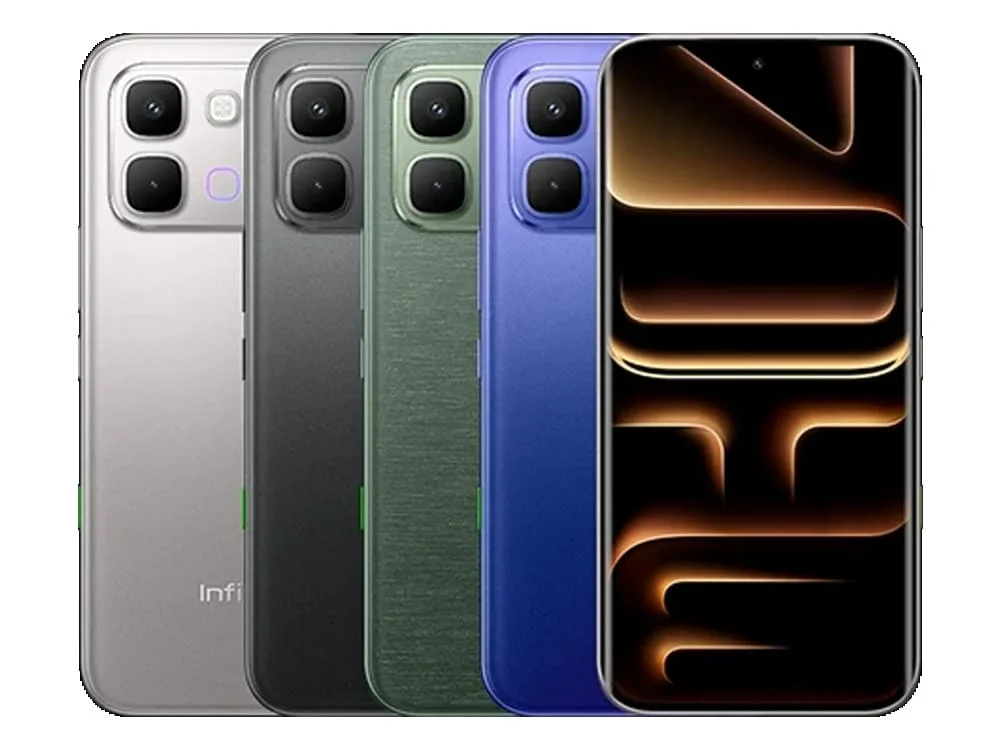
If your Infinix Note Edge smartphone is running really slow or freezing, and you want to clear everything off it, restore it to its original settings, or get it ready for sale or to give to someone without them accessing your stuff like files, photos, videos, and passwords, you can do a factory reset. This will make your Note Edge phone fresh, like when you first got it. Just follow these steps to do a hard reset or factory reset on your Infinix Note Edge.
Warning! Before doing a hard reset of Infinix Note Edge, make sure to save important stuff like your contacts, pictures, videos, and WhatsApp messages. Once you do a hard reset, you can’t get back the data you lose.
You can hard reset or factory reset the Infinix Note Edge Phone using two methods: one through the phone’s settings and the other through the recovery mode.
Method 1 – Hard Reset Infinix Note Edge Phone with Software Menu
Please make sure your phone battery already charge properly or minimum have 40% capacity.
Step 1 – Turn on your phone.
Step 2 – Open your phone’s settings.
Step 3 – Scroll down and select “System.”
Step 4 – Click on “Backup & Reset” (sometimes found in “Advanced” under Reset Options).
Step 5 – Open “Reset Options.”
Step 6 – Choose “Erase all Data” or “Factory Reset.”
Step 7 – A confirmation message will appear; click “Reset Phone” to proceed.
Your phone will reboot and may take several minutes to complete the process of restoring it to its original factory settings and optimizing the pre-installed applications in the operating system.
Method 2 – Hard Reset Infinix Note Edge Phone with Recovery Mode
Please make sure your Note Edge phone battery already charge properly or minimum have 40% capacity.
Step 1 – Turn off your phone. If the screen is unresponsive, press and hold the Power button for about 20 seconds to power it off.
Step 2 – Press and hold the Volume Down and Power buttons simultaneously. Release them when the Recovery mode screen appears (on some devices, this combination may involve the Power button and Volume Up key).
Step 3 – Choose “Recovery Mode” (navigate using the volume keys, and select with the Power button).
Step 4 – Go to “Clear Data” (or Wipe Data/Factory Reset).
Step 5 – Select “Clear All Data” (or Wipe All Data) and confirm.
Step 6 – Finally, select “Reboot.”
Your phone will reboot and may take several minutes to complete the process of restoring it to its original factory settings and optimizing the pre-installed applications in the operating system.
You Have successfully Reset your Infinix Note Edge Phone.
Conclusion
In conclusion, our guide on how to hard reset or factory reset the Infinix Note Edge is designed to help users tackle different issues easily. By following these simple steps, you can perform a thorough reset to troubleshoot problems and improve your device’s performance. Always be careful and back up your data before resetting to keep your important information safe. With this guide, you’ll be able to confidently manage your Infinix Note Edge, making the reset process straightforward for a smoother device experience.