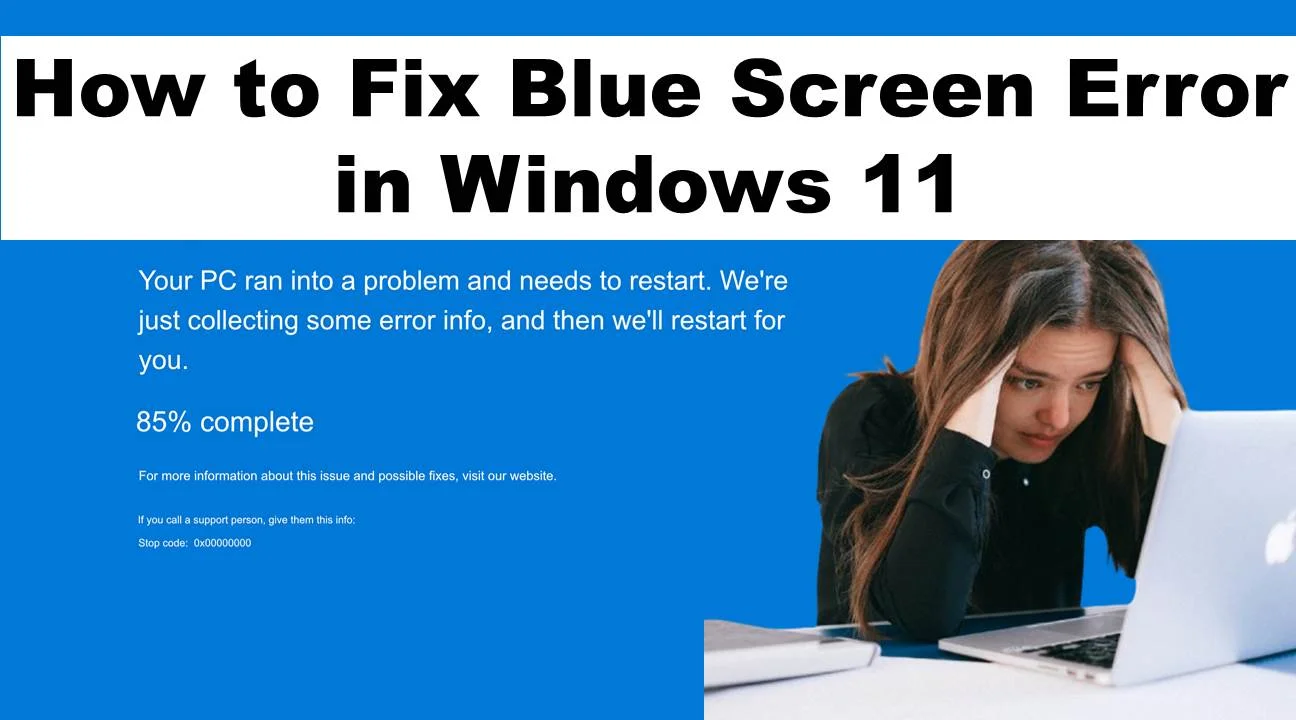
Experiencing the dreaded Blue Screen of Death (BSOD) on Windows 11 can be alarming, especially when you’re in the middle of important work. This error, officially called a Stop Error, typically signals a critical system issue that requires immediate attention. But don’t worry — most BSODs are fixable with the right approach.
In this comprehensive, human-written guide, we’ll walk you through how to diagnose and fix Blue Screen errors in Windows 11, step by step.
What Causes a Blue Screen in Windows 11?
Before diving into solutions, it’s essential to understand the root causes:
- Corrupt or incompatible drivers
- Faulty hardware (RAM, SSD, graphics card, etc.)
- Overheating or power supply issues
- Recent software or system updates
- Malware or corrupted system files
Step-by-Step Solutions to Fix Blue Screen in Windows 11
1. Note Down the Stop Code
Each BSOD comes with a unique stop code like CRITICAL_PROCESS_DIED or MEMORY_MANAGEMENT. This code is crucial to identifying the problem. Write it down or take a photo if needed.
2. Boot into Safe Mode
Safe Mode loads Windows with essential drivers only, allowing you to troubleshoot more effectively.
Steps:
- Press and hold the Power button to force shutdown.
- Turn on your PC and repeat this 2-3 times to trigger Windows Recovery Environment.
- Navigate to: Troubleshoot > Advanced options > Startup Settings > Restart
- Press 4 or F4 to boot into Safe Mode.
3. Uninstall Problematic Software or Drivers
If the BSOD started after installing a new app or driver:
Steps:
- Press Win + X > Device Manager
- Look for devices with a yellow warning icon
- Right-click and Uninstall the device or Roll Back Driver
For apps
- Settings > Apps > Installed Apps
- Sort by recently installed
- Uninstall suspicious or recent apps
4. Run Windows Memory Diagnostic
Faulty RAM is a major cause of BSOD.
Steps:
- Press Win + R, type mdsched.exe, and hit Enter
- Choose Restart now and check for problems
- The system will scan RAM on reboot
5. Update Windows and Drivers
Outdated system files or drivers may trigger compatibility issues.
Steps:
- Go to Settings > Windows Update > Check for updates
- Update all drivers via: Device Manager > Right-click each device > Update driver Or use trusted tools like Intel Driver & Support Assistant or NVIDIA GeForce Experience
6. Check for Corrupted System Files
Corrupted Windows files can destabilize the OS.
Run System File Checker:
- Open Command Prompt as Administrator
- Type: sfc /scannow and hit Enter
- Wait for the scan to complete and repair issues
Also run DISM: DISM /Online /Cleanup-Image /RestoreHealth
7. Check Disk for Errors
Disk errors on your SSD or HDD can result in a blue screen.
Steps:
- Open Command Prompt (Admin) and Type: chkdsk /f /r C:
- Type Y to schedule the scan and restart your computer
8. Scan for Malware
Viruses or rootkits can cause system-level failures.
Use Windows Defender:
- Go to Settings > Privacy & Security > Windows Security > Virus & threat protection
- Choose Full Scan
Alternatively, use tools like Malwarebytes for deep cleaning.
9. Restore to a Previous System Point
If the issue started recently, rolling back to a previous state can help.
Steps:
- Settings > System > Recovery
- Click Open System Restore
- Choose a date before the issue started and follow the prompts
10. Reset Windows 11 (Last Resort)
If nothing else works, you can reset Windows while keeping your files.
Steps:
- Settings > System > Recovery > Reset this PC
- Choose Keep my files
- Follow the on-screen instructions
Pro Tips to Prevent Future BSODs
- Regularly update Windows and drivers
- Avoid installing unknown third-party software
- Use genuine antivirus software
- Maintain proper ventilation and clean your PC from dust
- Backup your data frequently
Final Thoughts
A Blue Screen error in Windows 11 doesn’t always mean disaster. By carefully identifying the issue and methodically applying the above solutions, most users can resolve the problem without needing professional help. However, if the BSODs continue, it may indicate deeper hardware issues that require expert diagnostics.
If you found this guide helpful, share it with others who might be facing the same issue. Have a specific stop code you’re dealing with? Drop it in the comments, and we’ll help you troubleshoot it further.
Disclaimer: The methods shared in this article are for general troubleshooting purposes. Always back up your data before making major system changes. Seek expert help if unsure.