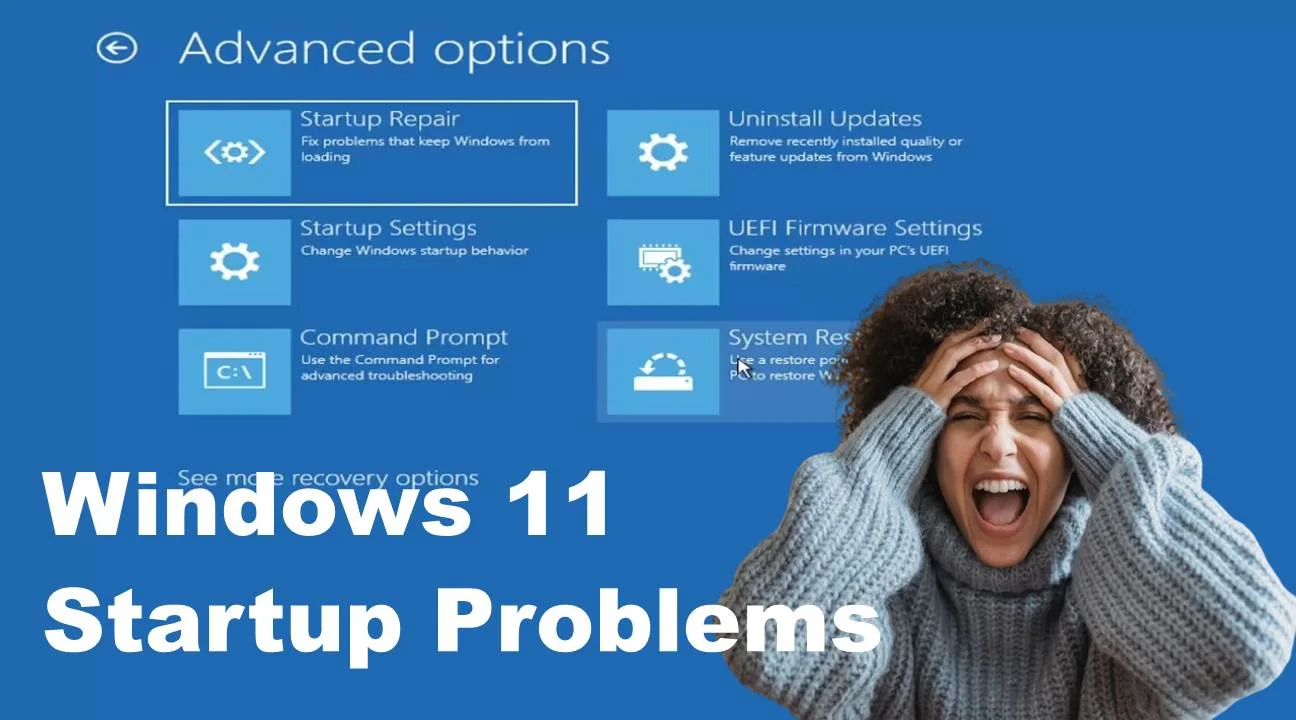
When Windows 11 refuses to boot and instead keeps showing the “Automatic Repair couldn’t repair your PC” message in a continuous loop, it can be extremely frustrating. Known as the Startup Repair loop, this problem is often caused by corrupted system files, missing boot configuration data, or recent software or hardware changes.
In this professional and human-written guide, you’ll learn what the Automatic Repair loop is, why it happens, and — more importantly — how to fix it step-by-step.
What Is the Windows 11 Automatic Repair Loop?
The Automatic Repair loop occurs when Windows 11 detects a problem during startup and tries to fix it automatically. However, instead of resolving the issue, the system reboots and returns to the same screen, leading to a continuous loop that prevents you from accessing your desktop.
Typical error messages include:
- “Automatic Repair couldn’t repair your PC”
- “Diagnosing your PC”
- “Preparing Automatic Repair”
Common Causes of the Startup Repair Loop
Understanding the cause is the first step to solving it:
- Corrupted or missing system files
- Damaged Boot Configuration Data (BCD)
- Failed Windows Updates
- Incompatible or failed drivers
- Disk errors or failing hardware (especially SSD/HDD)
How to Fix the Automatic Repair Loop in Windows 11
Here are several proven methods to break out of the repair loop and restore normal functionality:
1. Perform a Hard Reboot
Sometimes, a simple reboot can get you past the loop.
Steps:
- Press and hold the Power button for 10 seconds to force shut down.
- Wait 30 seconds and power it back on.
2. Boot into Safe Mode
Safe Mode disables unnecessary drivers and software, allowing you to troubleshoot more easily.
Steps:
- Interrupt startup 3 times to enter Windows Recovery Environment (WinRE)
- Go to: Advanced Options > Startup Settings > Restart
- Press 4 to enter Safe Mode
Once inside Safe Mode, you can uninstall problematic apps or updates.
3. Use Command Prompt for System Repair
From the WinRE interface:
Steps:
Choose: Advanced Options > Command Prompt and Then run these commands one by one:
- bootrec /fixmbr
- bootrec /fixboot
- bootrec /scanos
- bootrec /rebuildbcd
These rebuild your Boot Configuration Data, which often resolves startup problems.
4. Run System File Checker and DISM
Corrupt system files can cause repair loops.
- sfc /scannow
Followed by:
- DISM /Online /Cleanup-Image /RestoreHealth
These commands check for and restore damaged or missing files.
5. Disable Automatic Startup Repair
This will stop the loop and let you troubleshoot manually.
- bcdedit /set {default} recoveryenabled No
You can reverse this by typing:
- bcdedit /set {default} recoveryenabled Yes
6. Use System Restore
If you had System Restore enabled, roll back to a point before the issue began.
Steps:
- Advanced Options > System Restore
- Choose a restore point and follow the prompts
7. Uninstall Recent Updates
A faulty update might be causing the issue.
Steps:
- Advanced Options > Uninstall Updates
- Choose between: Uninstall latest quality update and Uninstall latest feature update
8. Check Disk for Errors
Disk corruption can trigger boot issues.
Command: chkdsk C: /f /r
This checks and attempts to fix disk errors. You’ll need to restart your PC afterward.
9. Reset Windows 11 (Optional – Keep Files)
If nothing works, reset the system while keeping your personal files.
Steps:
- Advanced Options > Reset this PC
- Choose Keep my files
- Follow on-screen instructions
Pro Tips to Avoid Startup Repair Loops in the Future
- Keep Windows and drivers updated regularly
- Use reliable antivirus software
- Avoid forced shutdowns or improper restarts
- Perform regular disk health checks using chkdsk or third-party tools
- Create a System Restore point before major changes
Final Thoughts
The Automatic Repair loop in Windows 11 can feel like a dead end, but it’s often fixable without reinstalling the OS. Whether it’s using Safe Mode, Command Prompt commands, or System Restore, the key is to approach the issue methodically.
If none of the solutions work, the problem could lie in the hardware itself — such as a failing SSD or RAM — and professional hardware diagnostics may be needed.
Disclaimer: This article provides general troubleshooting tips for Windows 11. Proceed carefully and back up important files before making system-level changes.