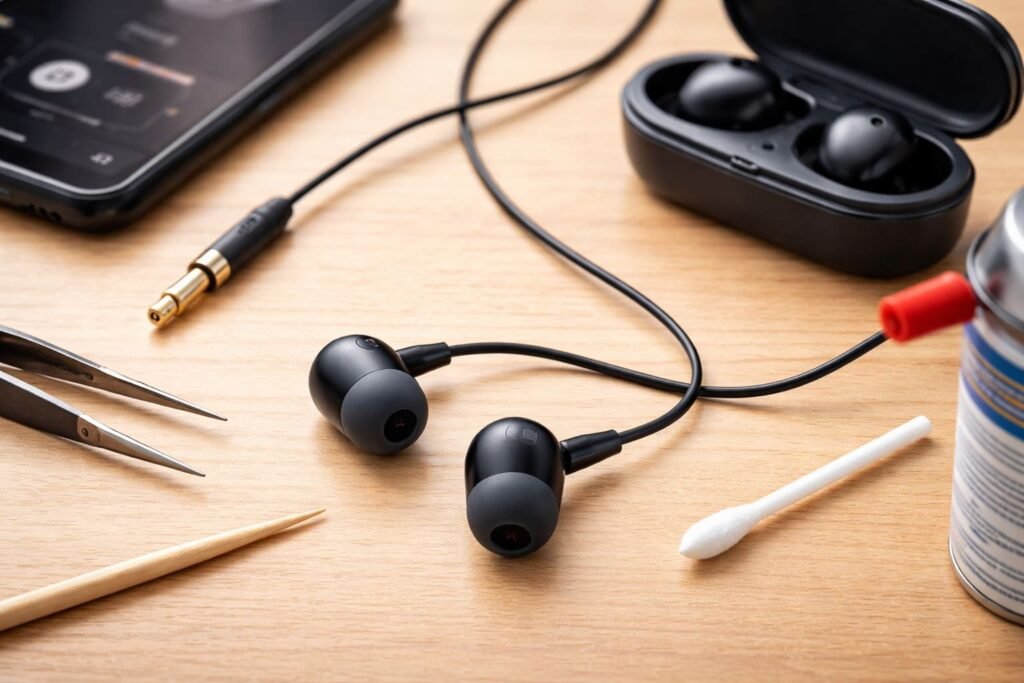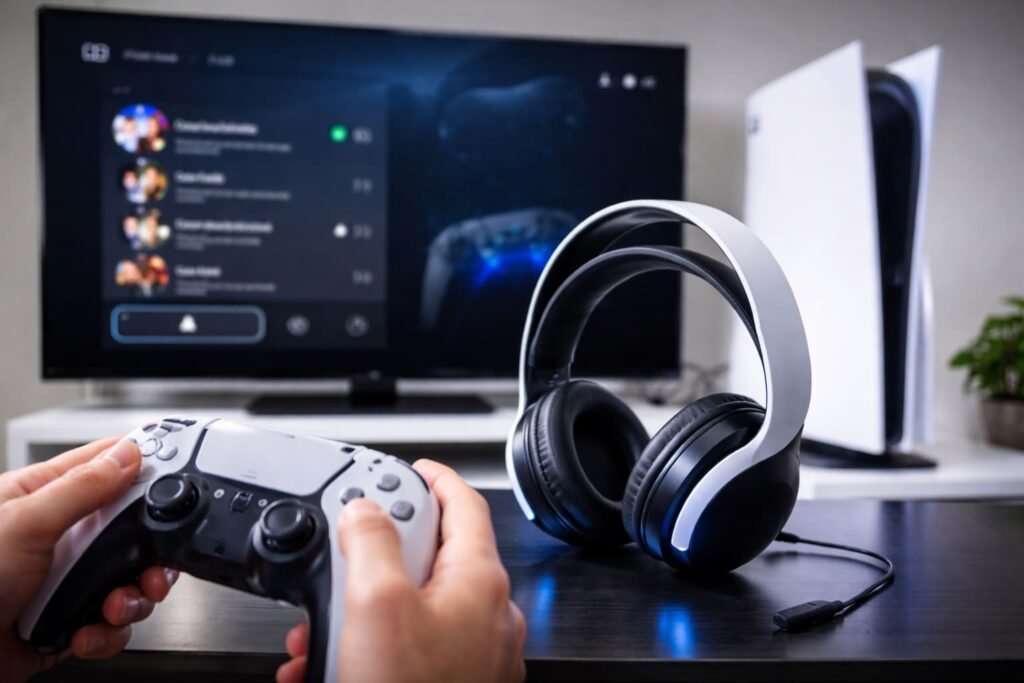

It can be confusing when your iPhone suddenly shows it’s in headphone mode—even when no headphones are plugged in. You might notice that sound doesn’t come from the speakers, calls feel silent, or volume buttons show a headphone icon.
This issue is more common than you think, and the good news is that in most cases, it can be fixed easily without visiting a service center. Let’s walk through the possible reasons and step-by-step solutions to get your iPhone back to normal.
Why Does iPhone Get Stuck in Headphone Mode?
Before jumping into fixes, it helps to understand what’s causing the problem. Some common reasons include:
- Dust or debris stuck inside the headphone jack or charging port
- Moisture or water exposure
- Software glitches after an update
- Faulty headphone detection system
- Bluetooth devices interfering with audio routing
How to Fix iPhone Stuck on Headphone Mode
Method 1: Plug and Unplug Headphones
This might sound simple, but it works surprisingly often.
Steps
- Plug your headphones into the iPhone
- Wait a few seconds
- Unplug them carefully
Repeat this 2–3 times. This helps reset the headphone detection mechanism.
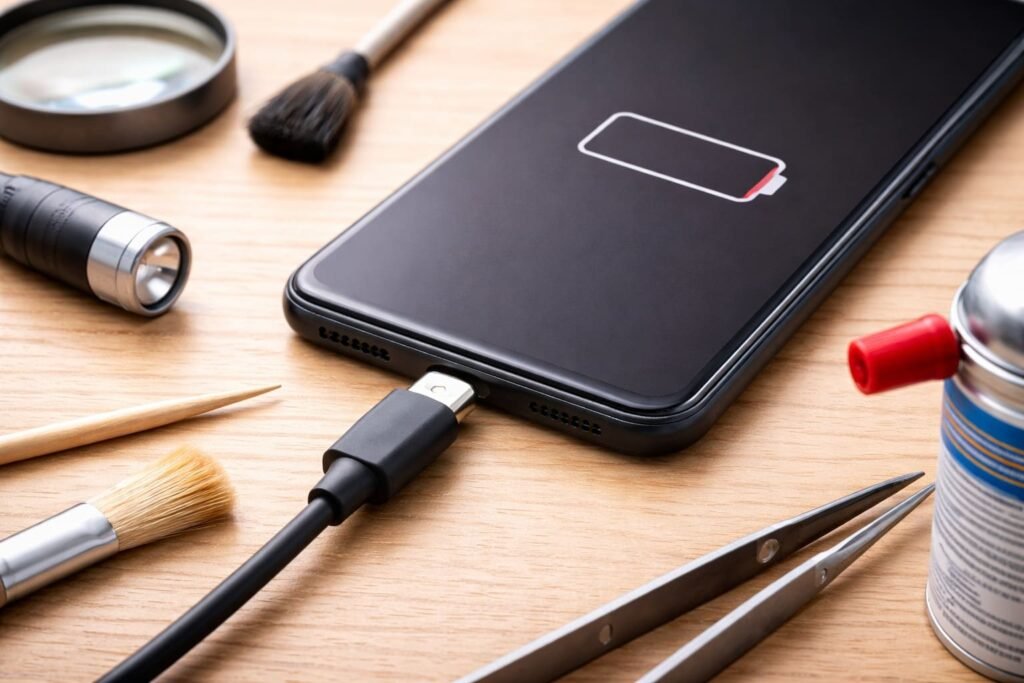
Method 2: Check the Charging Port for Dirt or Debris
Modern iPhones use the Lightning port for audio, so even small dust particles can confuse the system.
Steps
- Turn off your iPhone
- Use a flashlight to inspect the port
- Gently clean it using a soft brush or toothpick
Avoid using metal objects or applying too much pressure.
Method 3: Restart Your iPhone
A simple restart can fix minor software glitches.
Steps
- Press and hold the power button
- Slide to power off
- Wait 30 seconds
- Turn it back on
Check if the headphone icon disappears after reboot.
Method 4: Turn Airplane Mode On and Off
This helps reset wireless connections that might interfere with audio settings.
Steps
- Open Control Center
- Turn on Airplane Mode
- Wait for 1–2 minutes
- Turn it off
Method 5: Disconnect Bluetooth Devices
Sometimes your iPhone may be routing audio to a connected Bluetooth device.
Steps
- Go to Settings > Bluetooth
- Turn Bluetooth off
- Check if the sound returns to normal
Method 6: Check Audio Output Settings
You can manually select where audio should play.
Steps
- Open Control Center
- Tap the audio card
- Select iPhone Speaker
If it’s stuck on headphones, try switching it manually.
Method 7: Update iOS Software
Software bugs can cause this issue, especially after updates.
Steps
- Go to Settings > General > Software Update
- Download and install any available update
Updates often include bug fixes that may resolve the issue.
Method 8: Reset All Settings
If nothing works, resetting settings can help without deleting your data.
Steps
- Go to Settings > General > Transfer or Reset iPhone
- Tap Reset > Reset All Settings
- Enter your passcode
This will reset Wi-Fi, Bluetooth, and system settings but keep your files safe.
Method 9: Dry Your iPhone (If Exposed to Moisture)
Moisture can trick your iPhone into thinking headphones are connected.
What to Do
- Keep your iPhone in a dry place
- Avoid using a hairdryer (can damage components)
- Let it air dry naturally for several hours
When to Visit a Service Center
If none of the above methods work, it might be a hardware issue such as:
- Damaged audio IC
- Faulty Lightning port
- Internal circuit problem
In such cases, professional repair is the safest option.
Tips to Prevent This Issue in the Future
- Avoid using your iPhone in dusty or wet environments
- Clean the charging port regularly
- Use original or certified accessories
- Keep your iPhone software updated
Final Thoughts
An iPhone stuck in headphone mode can feel frustrating, but in most cases, it’s a minor issue caused by dirt, moisture, or a temporary glitch. By following the steps above, you can usually fix the problem within minutes.
If the issue keeps coming back, it’s worth getting your device checked to avoid long-term damage. Taking simple precautions can also help prevent this problem from happening again.
You can also read our related articles How to Backup Your iPhone Photos, What to Do When Your iPhone Can’t Find Your Location and How to Find Your iPhone MAC Address Easily.
FAQs
Q1. Why is my iPhone showing headphone mode without headphones?
This usually happens due to dust in the port, moisture, software glitches, or issues with headphone detection inside the device.
Q2. How do I turn off headphone mode on my iPhone?
You can fix it by plugging and unplugging headphones, restarting your iPhone, cleaning the port, or turning off Bluetooth.
Q3. Can water damage cause headphone mode issue?
Yes, moisture can confuse the internal sensors, making the iPhone think headphones are connected even when they are not.
Q4. Will resetting settings fix headphone mode?
In many cases, yes. Resetting all settings can remove software glitches without deleting your personal data.
Q5. When should I visit a service center?
If none of the basic fixes work, it could be a hardware issue like a damaged port or internal component, and professional repair is recommended.