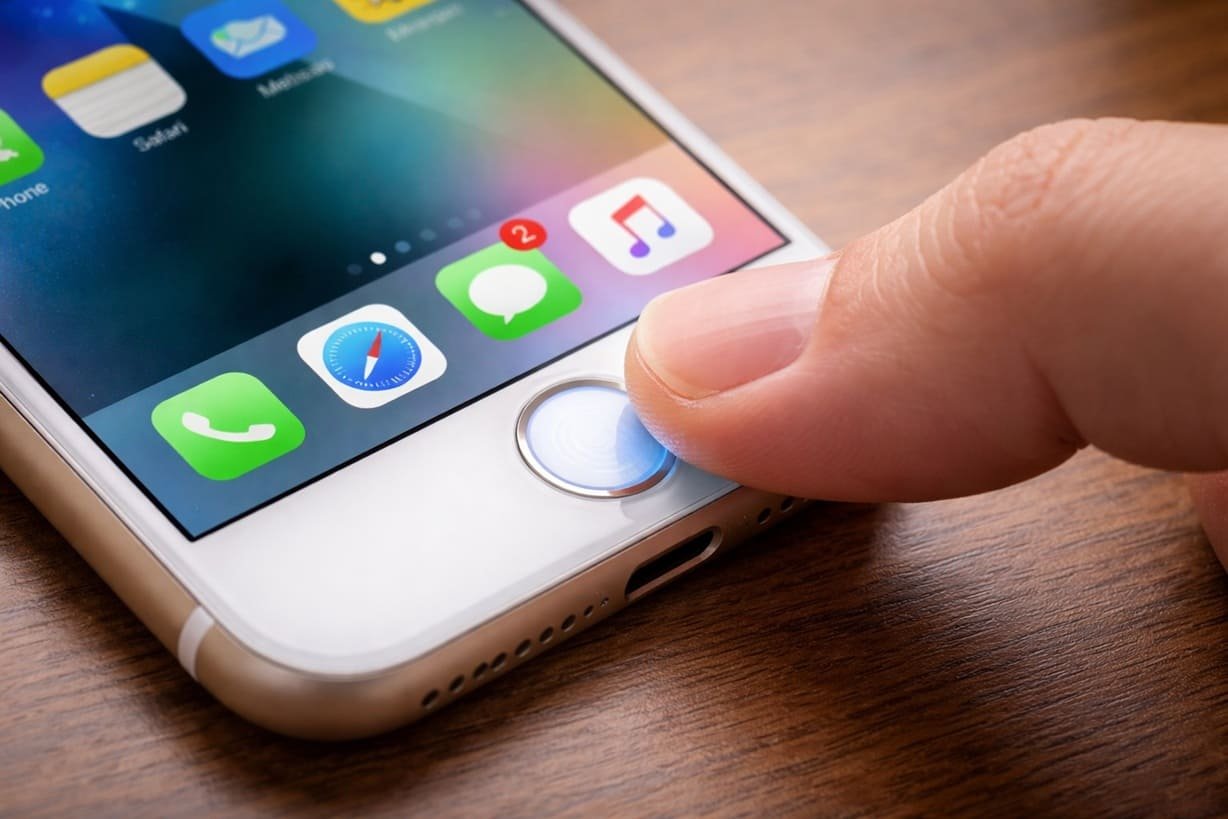
Touch ID is designed to make unlocking your iPhone fast and effortless. But when it suddenly stops recognizing your fingerprint, it can quickly turn into a frustrating experience. You place your finger on the sensor, and nothing happens—or worse, you get repeated “Try Again” messages.
If you’re dealing with this issue, don’t worry. In most cases, it’s not a serious hardware failure. Let’s break down why Touch ID stops working and what actually fixes it.
What Causes Touch ID to Stop Working?
Touch ID relies on a combination of hardware (the sensor) and software (iOS algorithms). When either side is affected, performance drops. Here are the most common reasons:
- Dirty or wet fingers
- Dust or oil on the sensor
- Minor software glitches
- Changes in your fingerprint (cuts, dryness, swelling)
- Incorrect fingerprint registration
- System updates causing temporary bugs
Understanding the cause helps you fix the issue faster instead of trying random solutions.
How to Fix Touch ID Stops Working
Fix 1: Clean Your Finger and the Sensor
This might sound basic, but it’s surprisingly effective.
- Wipe the Home button gently with a soft, dry cloth
- Make sure your finger is clean and dry
- Avoid using lotion or water right before using Touch ID
Even a small amount of moisture or oil can interfere with the sensor’s ability to read your fingerprint.
Fix 2: Restart Your iPhone
A simple restart can clear temporary glitches affecting Touch ID.
- Press and hold the power button
- Slide to power off
- Turn it back on after a few seconds
This refreshes system processes and often restores normal functionality.
Fix 3: Re-Register Your Fingerprint
If your fingerprint isn’t recognized consistently, it may not have been set up properly.
- Go to Settings > Touch ID & Passcode
- Delete your existing fingerprints
- Tap Add a Fingerprint
- Follow the instructions carefully
Tip: While registering, slightly adjust your finger position each time to capture all angles.
Fix 4: Add Multiple Fingerprints
Instead of relying on one scan, add the same finger multiple times.
- Register the same finger twice or even three times
- This improves recognition accuracy
This trick helps Touch ID better understand variations in how you place your finger.
Fix 5: Check for Software Updates
Sometimes, the issue is linked to software bugs.
- Go to Settings > General > Software Update
- Install the latest iOS version if available
Updates often include fixes that improve biometric performance.
Fix 6: Adjust Finger Placement
Touch ID works best when your finger fully covers the sensor.
- Place your finger flat, not at an angle
- Hold it steady for a moment
- Avoid tapping too quickly
Consistency matters more than speed.
Fix 7: Reset All Settings
If the problem continues, resetting system settings can help.
- Go to Settings > General > Transfer or Reset iPhone
- Tap Reset > Reset All Settings
This won’t delete your data but will reset preferences like Wi-Fi and display settings.
Fix 8: Check for Physical Damage
If none of the above works, inspect your device.
- Is the Home button scratched or damaged?
- Has the phone been exposed to water?
Touch ID is sensitive hardware, and physical damage can permanently affect it.
When It’s a Hardware Problem
If Touch ID completely stops working and doesn’t respond at all, it could be a hardware issue. In such cases:
- Visit an authorized Apple service center
- Avoid third-party repairs, as Touch ID is linked to device security
Final Thoughts
Touch ID problems are usually caused by simple factors like dirt, moisture, or minor software issues. The good news is that most of these can be fixed in minutes by cleaning the sensor, re-registering fingerprints, or updating your iPhone.
If the issue persists despite trying everything, it’s likely a hardware problem that needs professional attention. Either way, understanding the root cause saves time and helps you fix the problem more effectively.
You can also read our related articles How to Fix iPhone Not Ringing and How to Fix iPhone Cannot Activate Data Error.
FAQs
Q1. Why does Touch ID suddenly stop recognizing my finger?
This usually happens due to dirt, moisture, fingerprint changes, or minor software glitches affecting the sensor.
Q2. Can I fix Touch ID without going to a service center?
Yes, most issues can be fixed by cleaning the sensor, re-registering fingerprints, or updating your iPhone.
Q3. Does resetting settings fix Touch ID problems?
In some cases, resetting all settings can resolve software-related issues affecting Touch ID performance.
Q4. Why should I add the same fingerprint multiple times?
Adding the same finger more than once improves recognition accuracy by capturing different angles and positions.
Q5. What if Touch ID still doesn’t work after trying everything?
If nothing works, it could be a hardware issue, and you should visit an authorized Apple service center for proper diagnosis.
Image Credits: Created by ChatGPT using DALL·E (OpenAI).