
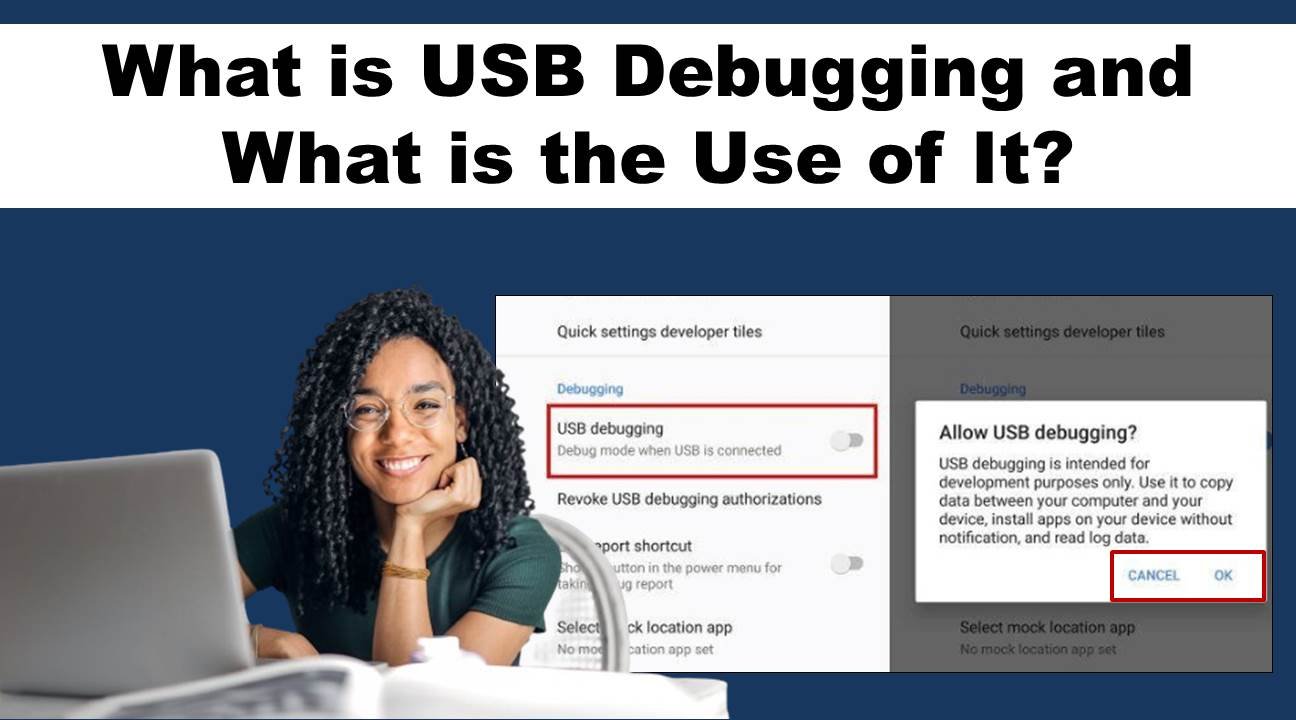
USB Debugging is a feature that bridges the gap between an Android device and a computer, offering a range of powerful tools and functionalities primarily aimed at developers. While its name may suggest something technical and intimidating, USB Debugging is actually a versatile feature that can benefit a variety of users. This article explores what USB Debugging is, its practical applications, and how it can be useful for both developers and everyday users.
What is USB Debugging?
USB Debugging is a mode within the Developer Options on Android devices that allows communication between an Android phone or tablet and a computer using a USB cable. Once enabled, it grants access to various advanced features and tools, particularly those involved with the Android Software Development Kit (SDK). This mode is primarily designed for developers, enabling them to interact with their devices in ways that are not possible with the standard consumer settings.
How to Enable USB Debugging
To enable USB Debugging, follow these steps:
Step 1: Unlock Developer Options: Go to Settings > About phone and tap on the Build number multiple times until you see a message that Developer Options are now enabled.
Step 2: Access Developer Options: Return to the main settings menu, and you should now see Developer options. Tap on it.
Step 3: Enable USB Debugging: In the Developer Options menu, find and toggle the switch for USB Debugging.
Key Uses of USB Debugging
1. App Development and Testing
USB Debugging is indispensable for app developers. It allows developers to test and debug their applications in real-time directly on an Android device. This is critical for identifying and fixing bugs, monitoring performance, and ensuring that the app behaves as expected across different hardware and software configurations. Using tools like Android Studio and ADB (Android Debug Bridge), developers can:
- Install and uninstall apps: Easily install new builds of their apps for testing without going through the Google Play Store.
- Access app logs: Retrieve logcat data to analyze app behavior and debug issues.
- Run shell commands: Execute commands on the device, such as changing system settings or manipulating files.
2. Data Transfer and File Management
For everyday users, USB Debugging can simplify data transfer and file management. It enables more advanced file transfer methods that can access system files and directories not visible through standard USB connections. This is particularly useful for:
- Transferring large files: Move files like videos, photos, and documents between your device and computer more efficiently.
- Backing up data: Create comprehensive backups of your device, including app data and system settings.
- Recovering lost data: In some cases, USB Debugging can help recover data from a device that is malfunctioning or has suffered data corruption.
3. Customization and Root Access
For tech enthusiasts, USB Debugging is a gateway to deeper customization and control over their devices. It is often a prerequisite for:
- Rooting the device: Gaining root access allows users to modify system files, install custom ROMs, and access features and settings that are otherwise restricted.
- Installing custom ROMs: Flashing a custom ROM can give your device a new interface, improved performance, or additional features.
- Removing bloatware: Uninstall unwanted pre-installed apps that cannot be removed through regular methods.
4. Troubleshooting and Recovery
USB Debugging can be a crucial tool for troubleshooting and recovering from software issues. It allows users to:
- Access Recovery Mode: Use ADB commands to boot into Recovery Mode for system repairs or firmware updates.
- Reset the device: Perform factory resets or clear specific data, such as cache or user data, to resolve issues.
- Analyze system logs: Understand and diagnose problems by accessing detailed system logs.
Security Considerations
While USB Debugging offers numerous benefits, it also comes with security risks. When enabled, it can allow unauthorized access to your device’s data if connected to an untrusted computer. To mitigate these risks:
- Disable USB Debugging when not in use: Keep it turned off by default and only enable it when necessary.
- Use secure computers: Only connect your device to computers you trust and ensure that they are secure.
- Use a strong screen lock: Protect your device with a secure lock method, such as a PIN, password, or biometrics.
Conclusion
USB Debugging is a powerful and versatile feature that provides a deeper level of interaction between your Android device and a computer. Whether you’re a developer looking to test and debug apps, a tech enthusiast seeking to customize your device, or a regular user needing to transfer data, USB Debugging can be incredibly useful. However, it’s essential to be mindful of the security implications and use it responsibly. By understanding its functionalities and applications, you can make the most of USB Debugging while keeping your device secure.